You are here: PS Series Group Administration > Member Management > Displaying Member Enclosure Status
To display information about a member’s power supplies, cooling fans, and temperature, click:
Members > member_name > Enclosure tab
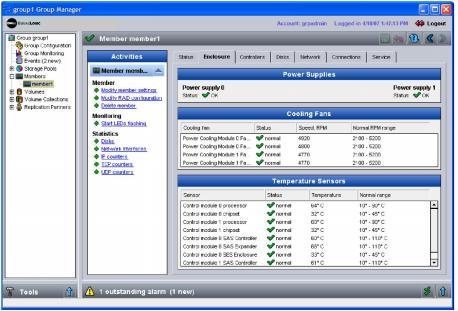
The Member Enclosure window appears. The output depends on your array model. Figure 18: Member Enclosure - PS5000 Array shows output from a PS5000 array.
Figure 18: Member Enclosure - PS5000 Array
The Power Supplies panel shows the status of the array power supplies. Power supply status is shown in Table 5: Power Supply Status.
|
Status |
Description |
|---|---|
|
OK |
Power supply is providing power to the array. |
|
no AC power or missing |
Power supply is not installed, not turned on, or not connected to a power source. Be sure to keep all power supplies installed and turned on. |
|
failed |
Power supply has failed. |
Some power supplies have a fan (only in PS Series Model 50E to 400E arrays). Power supply fan status is shown in Table 6: Power Supply Fan Status.
|
Status |
Description |
|---|---|
|
OK |
Fan is functioning. |
|
fan failed |
Fan has failed, or the power supply is not installed, not turned on, or not connected to a power source. |
Note: If a power supply or power supply fan fails, replace the power supply as soon as possible. To ensure proper cooling, do not remove a power supply until you have a replacement. For information about replacing a power supply, see the Hardware Maintenance manual for your array model or contact your array support provider.
One fan failure will not affect the member. However, more than one fan failure will cause the member temperature to rise. If the temperature rises excessively, an event message is generated to warn administrators of the potential problem. If the member temperature reaches its maximum limit, event and alarm messages are generated.
The Cooling Fans panel provides information on the fan tray or cooling module fans. Fan status is shown in Table 7: Fan Status.
|
Status |
Description |
|---|---|
|
normal |
Fan is operational. |
|
warning |
Fan RPMs are outside the normal range of operation. |
|
critical |
Fan has failed. |
Note: If a fan tray or cooling module fan fails, replace the affected component before the array overheats and is damaged. In addition, if fan RPMs are outside the normal range, the fan may be at risk of failure, and you may want to replace the fan tray or cooling module. For proper cooling, do not remove a fan tray or cooling module until you have a replacement. For information about replacing hardware see the Hardware Maintenance manual for your array model or contact your array support provider.
The Temperature Sensors panel displays the temperature for the various array controllers and processors, in addition to the normal temperature range.
Array temperature status is shown in Table 8: Array Temperature Status.
|
Status |
Description |
|---|---|
|
normal |
Temperature is within normal range. |
|
warning |
Temperature is outside normal range, but within limits. |
|
critical |
Temperature is outside operating limits. |
Note: If an array temperature status is critical, identify and correct the problem before the array overheats and is damaged. For example, check the air conditioning system where the array is located, in addition to the air flow around the array. If a processor temperature remains high, you may need to replace the control module. For proper cooling, do not remove a control module until you have a replacement. For information about replacing a control module, see the Hardware Maintenance manual for your array model or contact your array support provider.
PS Series Model 50E to 400E arrays also display the system (ambient) temperature, which is obtained using the two sensor temperatures (in Celsius) from the control module with the highest temperatures and the following calculation:
((Backplane Sensor 0 + Backplane Sensor 1) / 2) – 7