You are here: PS Series Group Administration > Basic Replication > Displaying Replication Status > Displaying Outbound Replication Status
There are two ways to display outbound replication and replicas. On the primary group, where the base volume resides, click:
Volumes > volume_name > Replication tab
The Volume Replication window appears (Figure 19: Volume Replication – Volume Replicas ), as described in Displaying the Replication Configuration for a Volume.
Alternately, to display outbound replication from the primary group to a partner (secondary group), click:
Replication partners > partner_name > Outbound tab
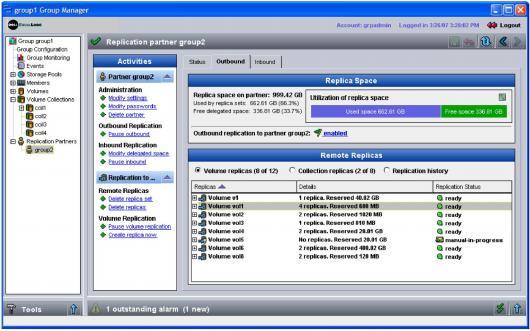
The Outbound Replication – Volume Replicas window appears (Figure 23: Outbound Replication – Volume Replicas ).
Figure 23: Outbound Replication – Volume Replicas
The Replica Space panel shows the usage of the space that the partner has delegated to the current group.
Note: If there is not enough partner space delegated to the group, the partner administrator can increase the delegated space, as described in Modifying a Replication Partner.
In the Remote Replicas panel, click Volume replicas to display the volumes that the group is replicating to the partner. Replica status is described in Table 1: Replica Status. Replication status from the perspective of the primary group is described in Table 2: Replication Operation Status – Primary Group.
Select a volume to display related tasks in the Activities panel. For example, you can pause or resume replication of the volume, cancel an in-progress replication, delete the replica set, or delete a specific replica.
Expand a volume to show the volume replicas (the replica set). Each replica is identified by the date and time the replication operation started. Replica status can be complete (all volume data has been stored on the secondary partner) or incomplete (the replication operation is in progress).
Note: Individual replicas are identified by the date and time that the replication operation was initiated. From the perspective of the primary group, the timestamp is based on the time zone set on the primary group. However, from the perspective of the secondary group, the timestamp is based on the time zone set on the secondary group.
In the Remote Replicas panel, click Collection replicas to display the volume collections that the group is replicating to the partner, as shown in Figure 24: Outbound Replication – Collection Replicas .
Figure 24: Outbound Replication – Collection Replicas
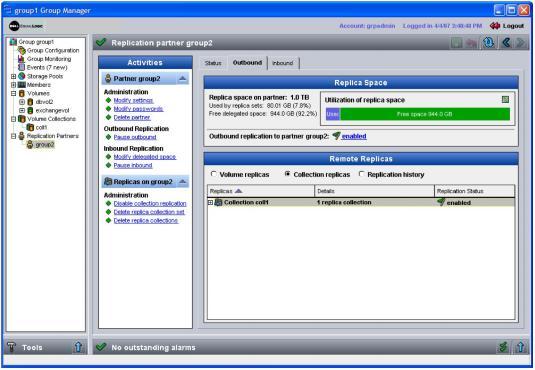
In the Remote Replicas panel, expand a volume collection to show the replica collections (the replica collection set). Expand a replica collection to show the individual replicas in the collection.
Select the volume collection name to display related tasks in the Activities panel. For example, you can disable replication of the volume collection, delete the entire set of replica collections, or delete a specific replica collection.
Select a replica to display related tasks in the Activities panel. For example, you can delete the replica from the replica collection.
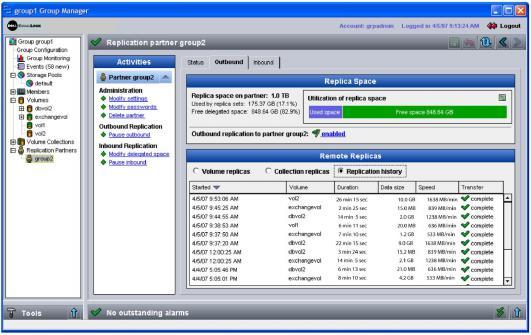
In the Remote Replicas panel, click Replication History to show details about the last 10 replication operations for each volume (Figure 25: Outbound Replication – Replication History ), including the duration of the replication and the size and speed of the data transfer. The duration includes the amount of time during which replication was paused or the network was down.
Note: If replication operations are taking too long, be sure you have adequate network bandwidth between the groups, in addition to full IP routing. A slow network link may result in long replication times.
Figure 25: Outbound Replication – Replication History