You are here: PS Series Group Administration > Member Management > Managing the Disk Array > Displaying the Disk Configuration
To display the status of a disk array, click:
Members > member_name > Disks tab
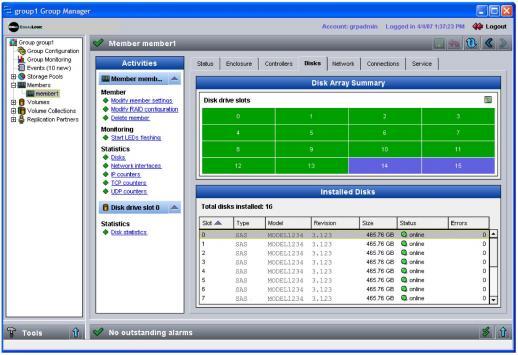
The Member Disks window appears, displaying the disks in the array. The output shown depends on your array model and the installed disk type (SAS or SATA). Figure 9: Member Disks - PS5000 Array shows the disks in a PS5000 array.
Figure 9: Member Disks - PS5000 Array
The Disk Array Summary panel shows a graphical representation of the disks in the member.
The Installed Disks panel shows detailed information about each disk, including the disk slot, type, model and revision, size, status, and errors.
Note: If disk errors occur, you should investigate before the disk fails.
Disk status is shown in Table 3: Disk Status.
|
Status |
Description |
|---|---|
|
disk-too-small |
Disk is smaller than other disks in the array. The disk cannot be used in the array. Note: You should replace the disk with a disk that is the same size as, or larger than, the other disks in the array. |
|
failed |
Disk has failed. Note: If the disk status is failed, immediately replace the failed disk. It is recommended that spare disks be installed and functioning in an array. |
|
foreign disk |
Disk has a foreign disk label. This indicates that the disk was removed from a different array and then installed in this array. Note: To use the disk in the array, click the foreign disk link and confirm that you want to clear the label. |
|
history-of-failure |
Previously failed disk. Note: You may want to consider replacing the disk. If you are sure you want to use the disk in the array, click the history-of-failure link and confirm that you want to use the disk. |
|
offline |
Used when a disk does not fall into the other status categories. |
|
online |
Functioning as a data disk. |
|
spare |
Functioning as a spare disk. |
|
unsupported-version |
Disk is not supported by the firmware version on the array. |
Select a disk to display the Disk Statistics link in the Activities panel. Click this link to display disk statistics.