You are here: PS Series Group Administration > Volume Management > Managing Volume Collections > Displaying Volume Collection Status
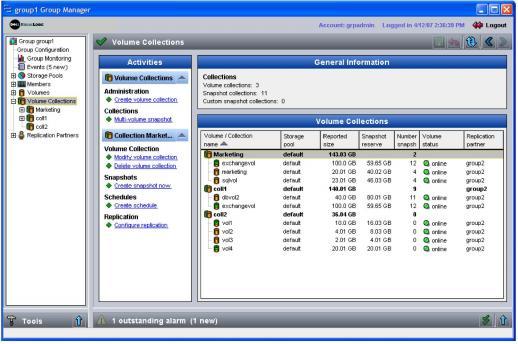
To display the volume collections in a group, click Volume Collections in the far left panel. The Volume Collections window appears (Figure 11: Volume Collections ).
The Volume Collections panel shows the volumes that comprise each volume collection, including the volume pool, size, snapshot reserve, number of snapshots, status, and replication partner.
Select a collection name or volume name to display related tasks in the Activities panel.
To display details about a specific volume collection, double-click a collection in the Volume Collections panel or click:
Volume Collections > collection_name > Status tab
The Volume Collection - Status window appears (Figure 12: Volume Collection - Status ), displaying the snapshot and replication status of the collection and details about the collection volumes.
Figure 12: Volume Collection - Status
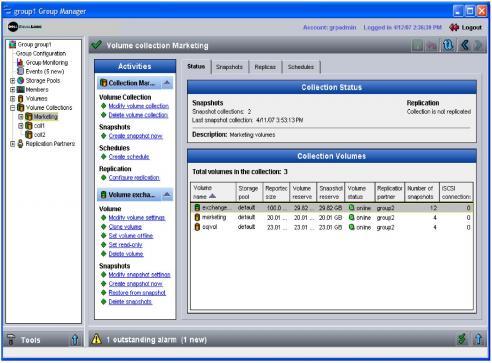
In the Collection Volumes panel, select a volume name to display related tasks in the Activities panel.
Click the Snapshots tab to display the Volume Collection - Snapshots window (Figure 13: Volume Collection - Snapshots ), which shows the snapshot collections for the volume collection.
Figure 13: Volume Collection - Snapshots
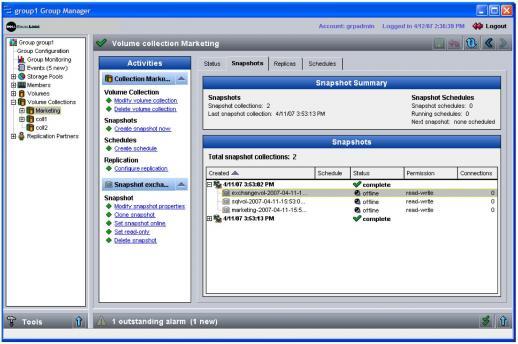
See Managing Snapshot Collections for more information about snapshot collections.
Click the Replicas tab to display the Volume Collection - Replicas window (Figure 14: Volume Collection - Replicas ), which shows the replica collections for a volume collection.
Figure 14: Volume Collection - Replicas
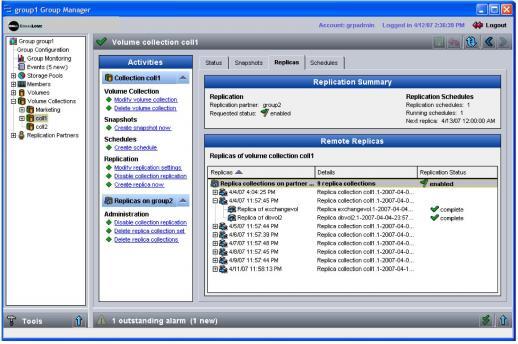
See Basic Replication for more information about replica collections.
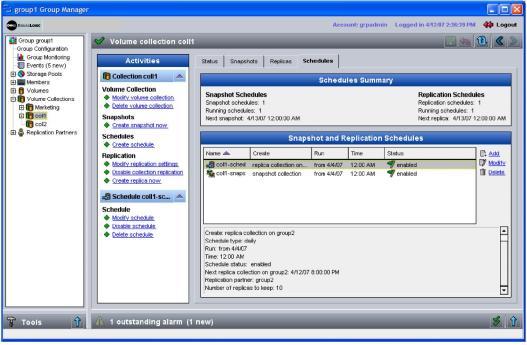
Click the Schedules tab to display the Volume Collection - Snapshot and Replication Schedules window (Figure 15: Volume Collection - Schedules ).
Figure 15: Volume Collection - Schedules
For information about setting up a schedule for a volume collection, see Managing Schedules for Snapshots and Replicas.