You are here: PS Series Group Administration > Volume Management > Displaying Volume Status and Configuration
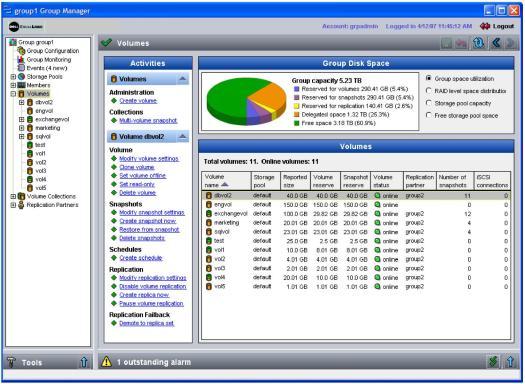
To display all the volumes in a group and their status, including current iSCSI connections, click Volumes in the far left column. The Volume Summary window appears (Figure 6: Volume Summary ).
Volumes are represented by icons that indicate specific attributes, as follows:
 ).
). ).
). ). See Recovering Data on the Secondary Group for information about recovery volumes.
In the Group Disk Space panel, select the type of information you want to display:
The Volumes panel provides information about each volume, including the storage pool, reported size, volume reserve, snapshot reserve, number of snapshots, status, replication partner, and number of iSCSI connections. Select a volume name to display volume-related tasks in the Activities panel.
Place the mouse over a volume to display a pop-up message showing both the requested volume status and the current volume status. The requested status for a volume is set by an administrator and described in Table 2: Requested Volume Status. The current volume status, also shown in the status column in the Volume Summary window, is described in Table 3: Current Volume Status. If the requested status and the current status are different, you should investigate.
|
Status |
Description |
|---|---|
|
online |
Administrator set the volume online. Authorized hosts can access the volume. |
|
offline |
Administrator set the volume offline. Hosts cannot access the volume. |
|
online-lost-blocks |
Administrator chose to set the volume online despite lost blocks. Authorized hosts can access the volume. If an application attempts to read a lost block, an error will occur. If the block is re-written, no error will occur, and the block will no longer be marked lost. |
|
Status |
Description |
|---|---|
|
online |
Volume was set online by an administrator, and no failures have occurred. Authorized hosts can access the volume. Online volumes appear in the far left panel in black text. |
|
offline |
Volume was set offline by an administrator, but no failures have occurred. Hosts cannot access the volume. Offline volumes appear in the far left panel in gray text. |
|
offline-snap-reserve-met |
Volume was automatically set offline because the reserved snapshot space was exceeded and the snapshot recovery policy dictates that the volume be set offline. Note: To correct this condition, increase the amount of reserved snapshot space, as described in Modifying Snapshot Settings. |
|
offline-thin-max-grow-met |
Thin-provisioned volume was automatically set offline because in-use space reached the maximum allowed. Note: To correct this condition, increase the value of the maximum in-use space setting for the volume, as described in Modifying Volume Settings. |
|
offline-nospace-auto-grow |
Volume reserve was consumed, and the thin-provisioned volume was automatically set offline because there was not enough free pool space for the volume reserve to grow. Note: To correct this condition, add more space to the pool (such as by adding another member to the pool). |
|
offline-member-down |
Volume was automatically set offline because a member that contains volume data is down or cannot be reached by the other members over the network. Note: To correct this condition, fix the problem that caused the member to go down or become unreachable. |
|
offline-lost-blocks |
Volume was automatically set offline because blocks were lost. Note: To correct this condition, click the status link and choose how to handle the lost blocks. See Handling Lost Blocks for more information. |
To display details about a specific volume, double-click the volume name in the Volumes panel. You can also click:
Volumes > volume_name > Status tab
The Volume Status window appears (Figure 7: Volume Status ). The Volume and Snapshot Space panel looks slightly different for regular volumes than for thin-provisioned volumes; a thin-provisioned volume example is shown.
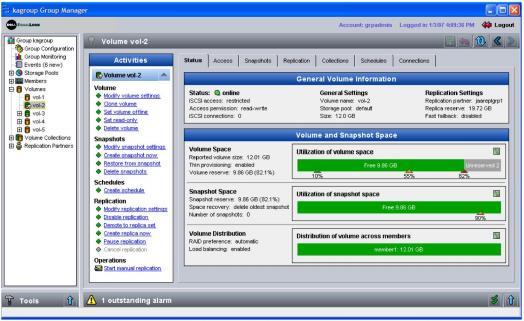
The General Volume Information panel displays additional information about the volume, including whether iSCSI access to the volume is restricted (only authorized hosts can access the volume) or unrestricted (all hosts can access the volume), or whether there are no access control records for the volume and, therefore, no host access to the volume.
The Volume and Snapshot Space panel shows the reported size, volume reserve, thin provisioning status (enabled or not), snapshot reserve, number of snapshots, status, replication partner, number of iSCSI connections, how much snapshot reserve space the volume is using in the pool, how volume data is distributed among the pool members, and the volume RAID preference, if any.
Clicking the other window tabs displays additional information about the volume and allows you to manage the volume configuration: