You are here: PS Series Group Administration > Group Customization > Modifying the Date, Time, and Time Zone
You can modify the group date, time, and time zone, as needed. You can also specify an external Network Time Protocol (NTP) server that the group will use to automatically synchronize time on all the members.
A group ensures that all members use a consistent time. The clock in each array is set at the factory and is based on GMT. The default time zone is America/New York. The group time is based on the first member’s clock. When an array joins a group, its clock is updated to the group date and time.
If the group time changes (either because you manually modified it or because the NTP server time changed), the time is first set on one group member. Then, the other group members synchronize their times with this member. Synchronizing time on a member can take as long as 24 hours if the time changes by an hour and could take longer if the time changes by more than an hour.
To modify the group date, time, or time zone or to specify an NTP server, click:
Group Configuration > General tab
The Group General window appears (Figure 2: Group General).
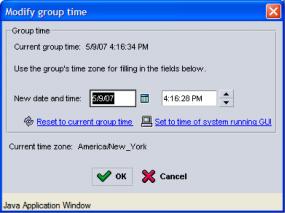
In the Date and Time panel, you can modify:
Alternatively, you can obtain the group time from an NTP server.
In the NTP servers panel, click Add. In the Add list item dialog box, specify the IP address for an NTP server and click OK. You can specify up to three IP addresses. Only one server is used at one time. The first server specified is the default server. The other servers are used, in the order specified, if the default server is not available. Use the up and down arrows to change the address order.
Use the ip_address:port format to specify a port number if you are using a port other than the default, 123.
As needed, you can modify or delete an NTP server by selecting the server IP address and clicking Modify or Delete.
Note: An NTP server must be set up and available on the network in order for the group to access it.