You are here: PS Series Group Administration > Group Customization > Displaying the Group Configuration and Status
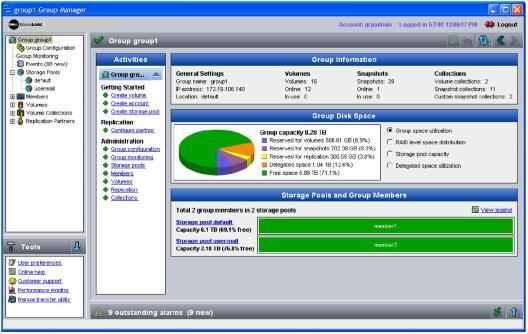
When you first log in to the GUI, the Group Summary window (Figure 1: Group Summary ) appears. This window displays an overview of the group configuration and status. Any alarms are shown in the panel at the bottom of the window.
The Group Information panel shows the number of volumes, snapshots, and collections in the group, in addition to the number of volumes and snapshots that are online and in use (that is, have a current iSCSI connection).
Note: A volume can be offline due to a failure or administrator action. In addition, a thin provisioned volume can go offline if its volume reserve reaches the maximum in-use limit. If volumes are offline, you should investigate whether a failure has occurred. See Displaying Volume Status and Configuration for information about monitoring volumes. By default, snapshots are offline, although you can manually set a snapshot online.
In the Group Disk Space panel, select the type of information you want to display:
Note: The group free space shown in the GUI may not reflect the actual free space because the GUI uses a rounding algorithm to calculate free space. To display the actual free space in megabytes, use the CLI command cli-settings displayinMB on. Then use the show command to display the free group space.
The Storage Pools and Group Members panel shows the members, capacity, and the percentage of free space in each storage pool.
A member that has a warning health condition will appear in orange with the warning symbol. A member with a critical health condition will appear in red with an error symbol. An offline member appears in gray. See Displaying Member Configuration and Status for information about monitoring members and diagnosing warning and critical health conditions.
Note: If a pool’s free space is low, consider moving volumes from the low-space pool to a different pool, as described in Moving a Volume Across Pools. You can also move a member to the low-space pool, as described in Moving a Member Across Pools.
To customize the group, click:
Group Configuration
The Group General window appears (Figure 2: Group General).
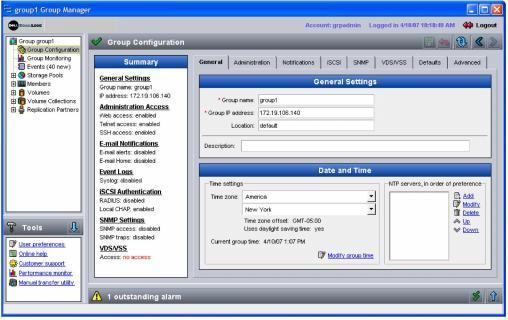
Click the window tabs to display group information and customize the group:
For details about interpreting group status, see Displaying the Group Configuration and Status.