You are here: PS Series Group Administration > Member Management > Moving a Member Across Pools
In a multi-member group, you can separate storage space into multiple storage pools and assign members to the pools. A member can be in only one pool at a time. Volumes can be assigned to pools with sufficient free space; volume data will be restricted to the pool members.
When a member is first added to a group, by default, it is assigned to the default storage pool. If multiple pools are available, you can assign the member to a different pool.
You can also move a member from one pool to another, with no impact on users and data availability. Volume data located on the member will be moved to the remaining pool members.
Within a pool, it is recommended that members with the same disk spin rate have the same RAID level. For example, if a pool contains two members that have 7200 RPM disks installed, both members should be configured with the same RAID level.
Notes: When moving a member to a different pool, if the remaining pool members do not have sufficient space to store the volume data from the member, the move operation will not start.
The space in a moved member will not be available in the new pool until the move operation completes.
If you cancel an in-progress member move operation, the member space will immediately return to the original pool.
If the pool to which a member is assigned is deleted, the members will be automatically and instantly assigned to the default pool.
To move a member to a different storage pool, click:
Members > member_name > Modify member settings
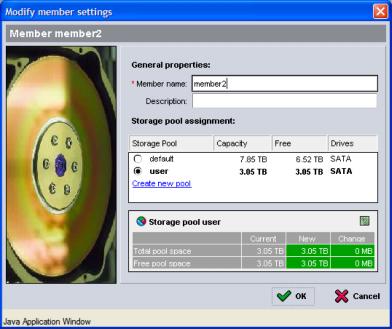
The Modify Member Settings dialog box appears (Figure 15: Modify Member Settings ), displaying the available pools and the capacity and free space in each pool.
Figure 15: Modify Member Settings
Select the pool for the member. The values in the storage pool table will be updated. If there is sufficient space for the member move operation, click OK.
The time to complete a member move depends on the amount of volume data that must be moved to the remaining pool members.
You can cancel a member move operation, if desired, and return volume data to the original storage pool. To cancel a volume move operation, click:
Members > member_name > Cancel member move