You are here: PS Series Group Administration > Getting Started > Controlling Group Manager GUI Operation > Setting GUI User Preferences
To control the GUI display and behavior, you can set the following:
To set general GUI policies, click:
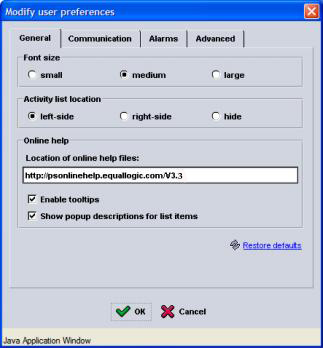
Tools > User Preferences > General tab
The User Preferences – General dialog box appears (Figure 3: User Preferences – General ).
Figure 3: User Preferences – General
You can set the following general GUI policies:
Select the general settings and click OK.
To set GUI communication policies, click:
Tools > User Preferences > Communication tab
The User Preferences – Communication dialog box appears (Figure 4: User Preferences – Communication ).
Figure 4: User Preferences – Communication
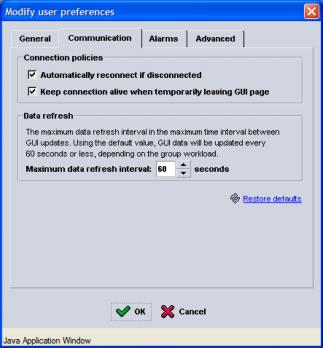
The User Preferences – Communication dialog box allows you to set:
If you select Automatically reconnect if disconnected, the GUI will automatically attempt to reconnect for 100 seconds. If the browser fails to reconnect, it will display a dialog box informing you that you have lost your connection and asking if you still want to reconnect. If you answer yes, the GUI will make another attempt. If you answer no, a message appears in red in the upper lefthand corner stating that the connection has been lost. If you de-select the policy, the GUI makes no automatic attempt at reconnection and the dialog box appears immediately.
If you de-select Keep connection alive when temporarily leaving GUI page, you will lose your connection if you click the Back (or Forward) button in your browser. If you select the policy, the connection is kept alive for 10 minutes.
To manually update data displayed in the GUI, click the Refresh data icon in the upper righthand corner of the GUI (under the Logout button). Do not use the browser’s refresh button.
Select the desired policies and click OK.
To control the behavior of alarm notification and the event log, click:
Tools > User Preferences > Alarms tab
The User Preferences – Alarms dialog box appears (Figure 5: User Preferences – Alarms).
Figure 5: User Preferences – Alarms
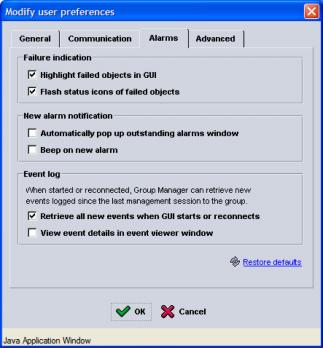
The dialog box enables you to customize:
Select the desired policies and click OK.
To control the level of validation of user input and whether debugging information is logged to a Java console, click:
Tools > User Preferences > Advanced tab
The Modify User Preferences Advanced dialog box appears (Figure 6: Modify User Preferences Advanced).
Figure 6: Modify User Preferences Advanced
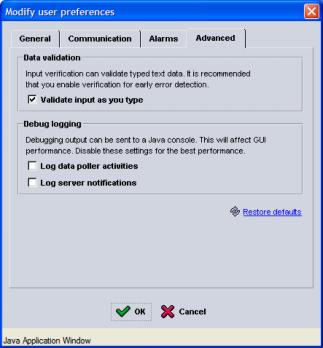
You can customize advanced user preferences as follows: