Configuring E-Mail Event Notification
To configure e-mail event notification, follow these steps:
- Click Group Configuration > Notifications tab. The Group Notifications window (Figure 12: Group Notifications ) appears.
Figure 12: Group Notifications
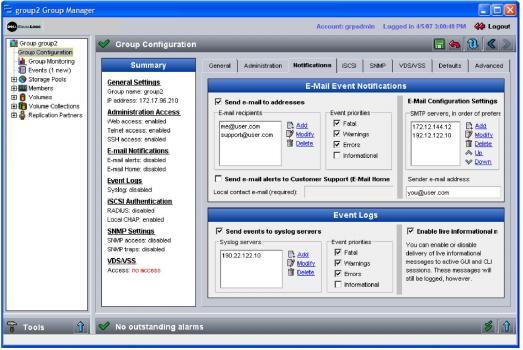
- In the E-Mail Event Notifications panel, select Send E-mail to addresses and click Add. In the Add List Item dialog box, specify an e-mail address and click OK. You can specify up to five addresses. All will receive events.
- Under Event priorities, select the event priorities for which you want to be notified. These priorities will apply to all the specified e-mail addresses.
- Specify one to three SMTP servers or e-mail relays to handle e-mail forwarding. Under E-Mail Configuration Settings, click Add. In the Add List Item dialog box, specify an e-mail address and click OK. Use the ip_address:port format to specify a port number if you are using a port other than the default, 25.
You can specify up to three addresses. Only one server is used at one time. The first server specified is the default server. The other servers are used, in the order specified, if the default server is not available. Use the up and down arrows to change the address order.
To modify or delete an IP address, select the address and click Modify or Delete, as desired.
- To ensure that the e-mail recipient does not discard or reject the notifications, under E-Mail Configuration Settings, in the Sender in e-mail address field, specify the e-mail address that will appear in the "From" field in the notification e-mail.
To test the e-mail notification, you can log out of the GUI and then log in again. Each configured e-mail address should receive the message.