You are here: PS Series Group Administration > Volume Management > Connecting Hosts to Volumes and Snapshots
A volume is seen on the network as an iSCSI target, which can only be accessed by an iSCSI initiator installed on a host. Both hardware and software initiators are available from a variety of vendors. Install and configure initiators using the instructions provided by the initiator vendor.
Notes: It is recommended that you visit the Technical Support website and check if there is information related to your iSCSI initiator.
To access a volume, a host must exactly match at least one of the volume’s access control records, unless the volume has unrestricted access. See Managing Access Controls for Volumes and Snapshots for more information.
Host access to volumes is through TCP/IP port 3260 (the standard iSCSI port). Some iSCSI initiators require this port number.
The exact procedure for logging in to an iSCSI target depends on the iSCSI initiator. See your initiator documentation for details. In most cases, specify the group IP address as either the target portal or the discovery address in the initiator configuration utility.
If the initiator supports the discovery process, it will return a list of iSCSI targets that the host can access. If you are using iSNS, the initiator will automatically discover targets from the iSNS server if the volumes and snapshots are online.
Otherwise, you must specify the volume’s target name in the initiator configuration utility. To obtain the iSCSI target name for a volume, click:
Volumes > volume_name > Connections tab
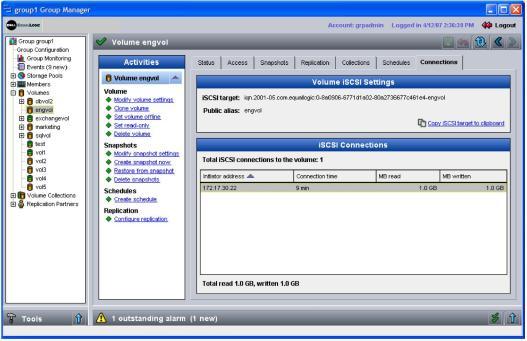
The Volume Connections window appears (Figure 18: Volume Connections ) with the iSCSI target name in the iSCSI target field. You can copy it to the clipboard, if desired.
Use the initiator configuration utility to connect (log in) to the iSCSI target for the desired volume. Enter CHAP credentials at this time if required for volume access.
Once the initiator logs in to the iSCSI target, the volume is seen by the host as a normal disk that can be formatted using the usual operating system utilities. For example, you can partition the disk and create a file system.
Note: Some file systems require that a volume or snapshot have read-write permission even if the file system will be read-only. See Setting Volume Permission and Setting Snapshot Permission for information about setting read-write permission on a volume or snapshot.
The Volume Connections window (Figure 18: Volume Connections ) and the Snapshot Status window (Figure 4: Snapshot Status ) display the iSCSI connections to volumes and snapshots, including information about the initiator address, connection time, and the amount of data transferred.