You are here: PS Series Group Administration > Diagnosing Problems > Monitoring Events > Displaying Events
Events can be displayed using the Group Manager GUI or CLI and are also seen on the console. Each event is assigned a priority. Table 1: Event Priorities lists event priorities in order from highest (most severe) to lowest (least severe).
|
Priority |
Description |
|---|---|
|
FATAL |
Catastrophic failure that requires immediate administrator intervention. |
|
ERROR |
Serious failure that should be investigated and may require administrator intervention. |
|
WARNING |
Potential problem in the group. An event with this priority may become an event with error priority if administrator intervention does not occur. |
|
INFO |
Normal operational and transitional events that are of interest to administrators but do not require intervention. |
Examples of event messages are shown next:
INFO 4/11/06 11:02:23 mem2 Volume ‘dbvol’ has been successfully created
WARNING 4/11/06 14:19:43 mem1 There are outstanding warning health conditions
Each event message displays:
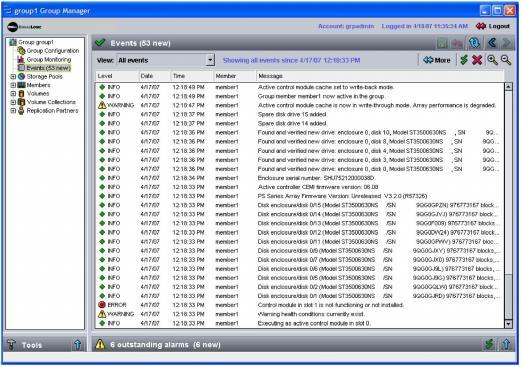
You can view events by clicking Events in the far left panel of the GUI. The Group Events window appears (Figure 1: Group Events ).
To view additional information about events, place the cursor over the event message. Detailed information appears in a popup window. If the popup does not appear, check that you have enabled popups, as described in General Policies.
From the Group Events window, you can:
 ) icon. Click the icon again to retrieve the next 100 events.
 ) icon. Acknowledging all events turns off the bolding.
  ) icon. To display the events again, click the retrieve previous events icon.
 ) to display and hide detailed information about the selected event.
If the GUI is not available, you can use the Group Manager CLI to display events. Use telnet or SSH to connect to the group and log in to a group administration account. If you do not have a network connection, use a serial connection from an array to a console or computer running a terminal emulator. At the CLI prompt, enter the show recentevents command. See the CLI Reference for more information.