You are here: PS Series Group Administration > Volume Management > Modifying Volume Settings > Setting a Volume RAID Preference
A PS Series group uses performance load balancing metrics (enabled by default) to automatically identify the RAID level that will provide optimal performance for the volume and attempts to locate the data on pool members configured with that RAID level. For example, if the group determines that a volume performs best with RAID 10, it will attempt to place the volume data on pool members configured with RAID 10.
However, in some cases, a group administrator may want to manually specify a RAID preference for a volume (either RAID 10, RAID 50, or RAID 5). If a volume is assigned a RAID preference, the group will attempt to place volume data on pool members with that RAID level. Setting a RAID preference will override automatic performance load balancing for the volume.
Note: Volume data is restricted to the members in the storage pool to which the volume is assigned. If you attempt to set a RAID preference for a volume and the RAID level does not exist on any of the pool members, or if you delete the only pool member with the preferred RAID level or change its RAID level, you will be notified that the volume’s RAID preference will not be honored (enforced) until a member is configured with the preferred RAID level. If this occurs, only automatic capacity load balancing across the pool members will be enforced for the volume.
See Displaying Storage Pool Configuration and Status for information about identifying the RAID levels of the pool members.
To set a RAID preference for a volume, click:
Volumes > volume_name > Modify volume settings > Advanced tab
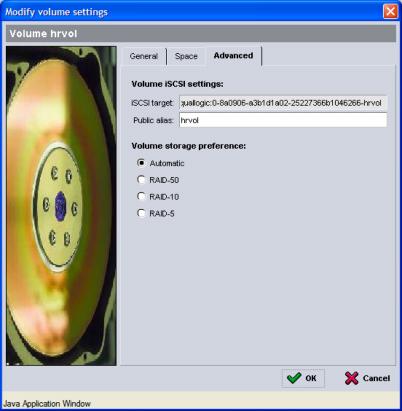
The Modify Volume Settings - Advanced dialog box appears (Figure 21: Modify Volume Settings - Advanced ).
Figure 21: Modify Volume Settings - Advanced
Under Volume storage preference, select the desired RAID level and click OK.