You are here: PS Series Group Administration > Storage Pool Management > Displaying Storage Pool Configuration and Status
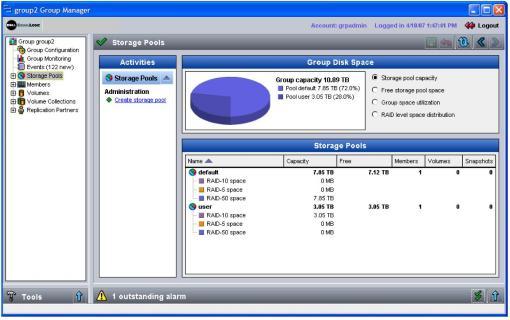
To display the storage pools in a group, in the far left panel, click Storage Pool. The Storage Pool Summary window (Figure 5: Storage Pool Summary ) appears.
Figure 5: Storage Pool Summary
In the Group Disk Space panel, select the type of information you want to display. For example, you can select the following:
Note: If a pool’s free space is low, you can increase free space by moving volumes from the low-space pool to a different pool, as described in Moving a Volume Across Pools. You can expand pool capacity by moving an existing member to the low-space pool, as described in Moving a Member Across Pools, or adding a new member to the group and assigning it to the low-space pool, as described in Adding Members to an Existing Group.
For each pool, the Storage Pools panel shows total pool capacity, free space, pool space configured for each RAID level, and the number of members, volumes, and snapshots. Select a pool to display related tasks in the Activities panel.
To display details about a pool, select the pool name in the far left panel or double-click the pool in the Storage Pools panel. The Storage Pool Status window appears (Figure 6: Storage Pool Status ).
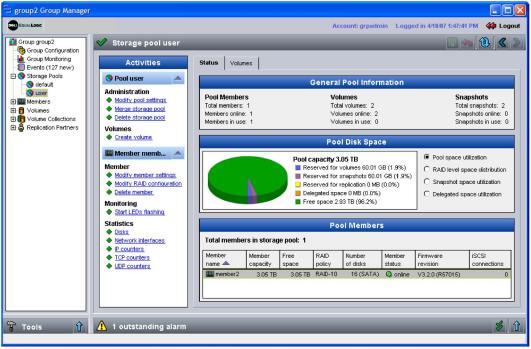
The General Pool Information window displays the status of the pool members and the number of volumes and snapshots in the pool, in addition to the number of volumes and snapshots that are online and in use (that is, have a current iSCSI connection).
In the Pool Disk Space panel, select the type of information you want to display:
Note: If free delegated space is low, monitor the replication partners, as described in Displaying Replication Activity Between Partners, to determine which partner needs more delegated space. See Modifying a Replication Partner for information on increasing delegated space.
The Pool Members panel lists the members that comprise the pool. For each member, the panel shows the member’s name, capacity, free space, RAID level, number of disks and their type (SAS or SATA), status, firmware version, and iSCSI connections. Select a member to display related tasks in the Activities panel.
Note: If a pool member is offline, be sure to investigate. See Displaying Member Configuration and Status for information about monitoring members.
To display detailed information about the volumes that have been assigned to the pool, click the Volumes tab. The Storage Pool Volumes window appears (Figure 7: Storage Pool Volumes ).
Figure 7: Storage Pool Volumes
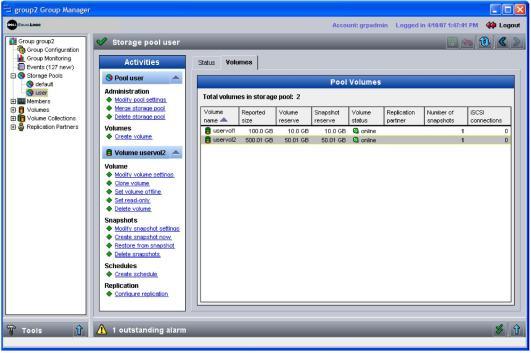
For each volume, the Pool Volumes panel displays the volume name, reported size (seen by iSCSI initiators), volume reserve (allocated space), snapshot reserve, status, replication partner, number of snapshots, and iSCSI connections. The volume icon indicates whether thin provisioning is enabled on the volume.
Select a volume to display related tasks in the Activities panel.
Notes: A volume can be offline due to a failure or administrator action, or, if thin provisioning is enabled, because the volume has reached its maximum growth limit. If a volume is offline, you should investigate. See Displaying Volume Status and Configuration for information about monitoring volumes.
If a volume’s free snapshot reserve is low, consider increasing the snapshot reserve. If the snapshot reserve is exceeded, the snapshot reserve recovery policy will be enforced and either snapshots will be deleted or the volume will be set offline. See Modifying Snapshot Settings for information about increasing snapshot reserve.