You are here: PS Series Group Administration > Group Customization > Managing Group Administration Accounts > Using External RADIUS Accounts
Using an external RADIUS authentication server to manage group administration accounts can be useful when you have many accounts (more than 100). You can also use RADIUS accounting servers to track the activity of these accounts.
RADIUS servers must be available on the network and accessible to the group for the servers to authenticate the account login or perform accounting.
There are various implementations of RADIUS. For information about setting up RADIUS servers themselves and specifying vendor-specific attributes (VSAs), see the documentation for your product.
Note: RADIUS authentication servers can also be used to authenticate host iSCSI access to the group. See Using External RADIUS Servers for Initiator Authentication.
Setting up an external RADIUS authentication server and configuring a group to use it involves a series of steps that alternate between those that you perform on the group, and those that you perform on the RADIUS server.
Note: Pool administrator accounts defined on a RADIUS server will be allowed full administrator access to PS Series groups running firmware versions 3.0.x and 3.1.x unless you configure the RADIUS server to restrict access, based on the IP address, to only groups running 3.2 or greater. It is recommended that you restrict access based on the client source IP address.
To configure a group to use an external RADIUS authentication server:
If the Service-Type is not set to either value, the administrator login will fail. See your RADIUS documentation for information on how to set attributes.
|
Attribute |
Field |
Required Value |
|---|---|---|
|
EQL-Admin Defines the type of login account. Required if the Require vendor-specific RADIUS attribute option is selected in the GUI. |
VSA Vendor ID |
12740 |
|
VSA Type |
6 |
|
|
VSA Length |
6 (1 byte type + 1 byte length + 4 bytes value) |
|
|
VSA Syntax |
integer (4 bytes) |
|
|
VSA Value |
1 (group administrator) 2 (pool administrator) |
|
|
EQL-Pool-Access (Required only if the value of the EQL-Admin attribute is 2, for pool administrator accounts. If so, use the VSA Syntax field to list the pools to which the pool administrator has access. |
VSA Vendor ID |
12740 |
|
VSA Type |
7 |
|
|
VSA Length |
3 - 255 |
|
|
VSA Syntax |
string (comma-separated list of pools) |
|
|
EQL-Admin-Full-Name (Optional). The name of the administrator who will use the account. |
VSA Vendor ID |
12740 |
|
VSA Type |
1 |
|
|
VSA Length |
3-253 |
|
|
VSA Syntax |
string |
|
|
EQL-Admin-Email (Optional). The email address of the administrator. |
VSA Vendor ID |
12740 |
|
VSA Type |
2 |
|
|
VSA Length |
3-253 |
|
|
VSA Syntax |
string |
|
|
EQL-Admin-Phone (Optional). The phone number for the administrator. |
VSA Vendor ID |
12740 |
|
VSA Type |
3 |
|
|
VSA Length |
3 - 253 |
|
|
VSA Syntax |
string |
|
|
EQL-Admin-Mobile (Optional). The mobile phone number for the administrator. |
VSA Vendor ID |
12740 |
|
VSA Type |
4 |
|
|
VSA Length |
3 - 253 |
|
|
VSA Syntax |
string |
|
|
EQL-Admin-Poll-Interval (Optional). Specifies how often, in seconds, the group configuration data must be re-polled by the GUI. Default is 30. |
VSA Vendor ID |
12740 |
|
VSA Type |
5 |
|
|
VSA Length |
6 |
|
|
VSA Syntax |
integer |
Before configuring RADIUS authentication servers in the Group Manager GUI, you must set up the RADIUS servers as described in Setting Up External RADIUS Authentication Servers.
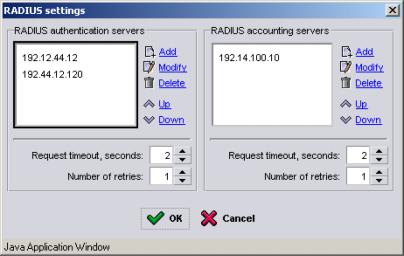
To configure a RADIUS authentication server in the group, click RADIUS settings. The RADIUS Settings dialog box appears (Figure 9: RADIUS Settings ).
Under RADIUS authentication servers, click Add. The Add RADIUS Authentication Server dialog box appears (Figure 10: Add RADIUS Authentication Server ).
Figure 10: Add RADIUS Authentication Server
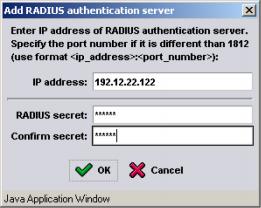
Specify the IP address for the server. Use the format ip_address:port if the port is different from 1812.
Optionally, enter the secret (password) for the RAIDUS authentication server. The secret can contain up to 63 characters. It is recommended that you use secrets for security reasons.
Click OK when you are finished.
You can specify up to three IP addresses. Only one server is used at one time. The first server specified is the default server. The other servers are used, in the order specified, if the default server is not available. Use the up and down arrows in the RADIUS Settings dialog box to rearrange the addresses.
To modify or delete an IP address, in the RADIUS Settings dialog box, select the IP address and click Modify or Delete.
In addition, for all the RADIUS authentication servers specified in the RADIUS Settings dialog box (Figure 9: RADIUS Settings ), specify information in the following fields:
To configure a RADIUS accounting server, in the RADIUS Settings dialog box (Figure 9: RADIUS Settings ), under RADIUS accounting servers, click Add. The Add RADIUS Accounting Servers dialog box (Figure 11: Add RADIUS Accounting Server ) appears.
Figure 11: Add RADIUS Accounting Server
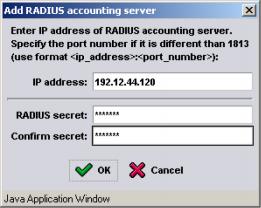
Specify the IP address for the server. Use the format ip_address:port if the port is different from 1813.
Optionally, enter the secret (password) for the RAIDUS authentication server. The secret can contain up to 63 characters. It is recommended that you use secrets for security reasons. Click OK when you are finished.
You can specify up to three IP addresses. Only one server is used at one time. The first server specified is the default server. The other servers are used, in the order specified, if the default server is not available. Use the up and down arrows in the RADIUS Settings dialog box to rearrange the addresses.
To modify or delete an IP address, in the RADIUS Settings dialog box, select the IP address and click Modify or Delete.
In addition, for all the RADIUS accounting servers specified in the RADIUS Settings dialog box (Figure 9: RADIUS Settings ), specify information in the following fields: