You are here: PS Series Group Administration > Basic Replication > Displaying Replication Status > Displaying Replication Activity Between Partners
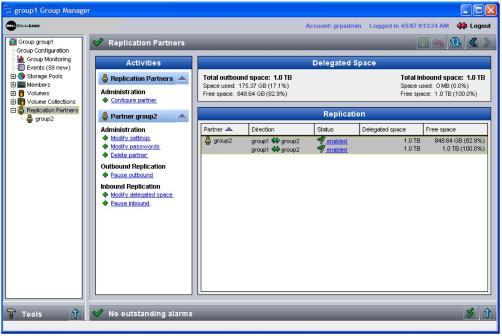
To display replication activity between a group and all its replication partners, click Replication Partners in the far left column. The Replication Partner Summary window appears (Figure 21: Replication Partner Summary).
Figure 21: Replication Partner Summary
In the Delegated Space panel, outbound space refers to the space on all the replication partners that is delegated to the group and used to store the group’s replicas. Inbound space refers to space in the current group that is delegated to all the replication partners and used to store partner replicas.
In the Replication panel, there are two entries for each replication partner. The arrows in the Direction column indicate the direction of the replication. The top entry describes outbound replication from the group to the partner, and the bottom entry describes inbound replication from the partner to the group.
The Replication panel also shows the amount of space the partners have delegated to each other and the amount of free delegated space.
Note: If free delegated space is low, the secondary group administrator may be able to increase the space delegated to the primary group, as described in Modifying a Replication Partner.
Select the partner in the Replication panel to display related tasks in the Activities panel. For example, you can modify the partner configuration, delete the partner, or pause replication between the partners.
To display details about replication between the group and a specific partner, double-click the partner name in the Replication panel. You can also click:
Replication partner > partner_name > Status tab
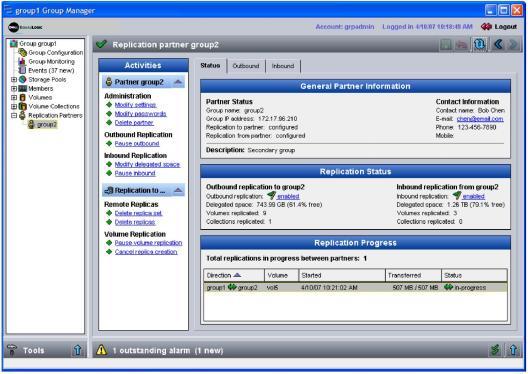
The Replication Partner Status window appears (Figure 22: Replication Partner Status), displaying the partner configuration, inbound and outbound replication status, including the number of volumes or volume collections replicated, and any in-progress replication operations.
Figure 22: Replication Partner Status
To display additional information about replication between the group and the partner, click the Outbound and Inbound tabs. See Displaying Outbound Replication Status and Displaying Inbound Replication Status.