You are here: PS Series Group Administration > Member Management > Displaying Member Configuration and Status
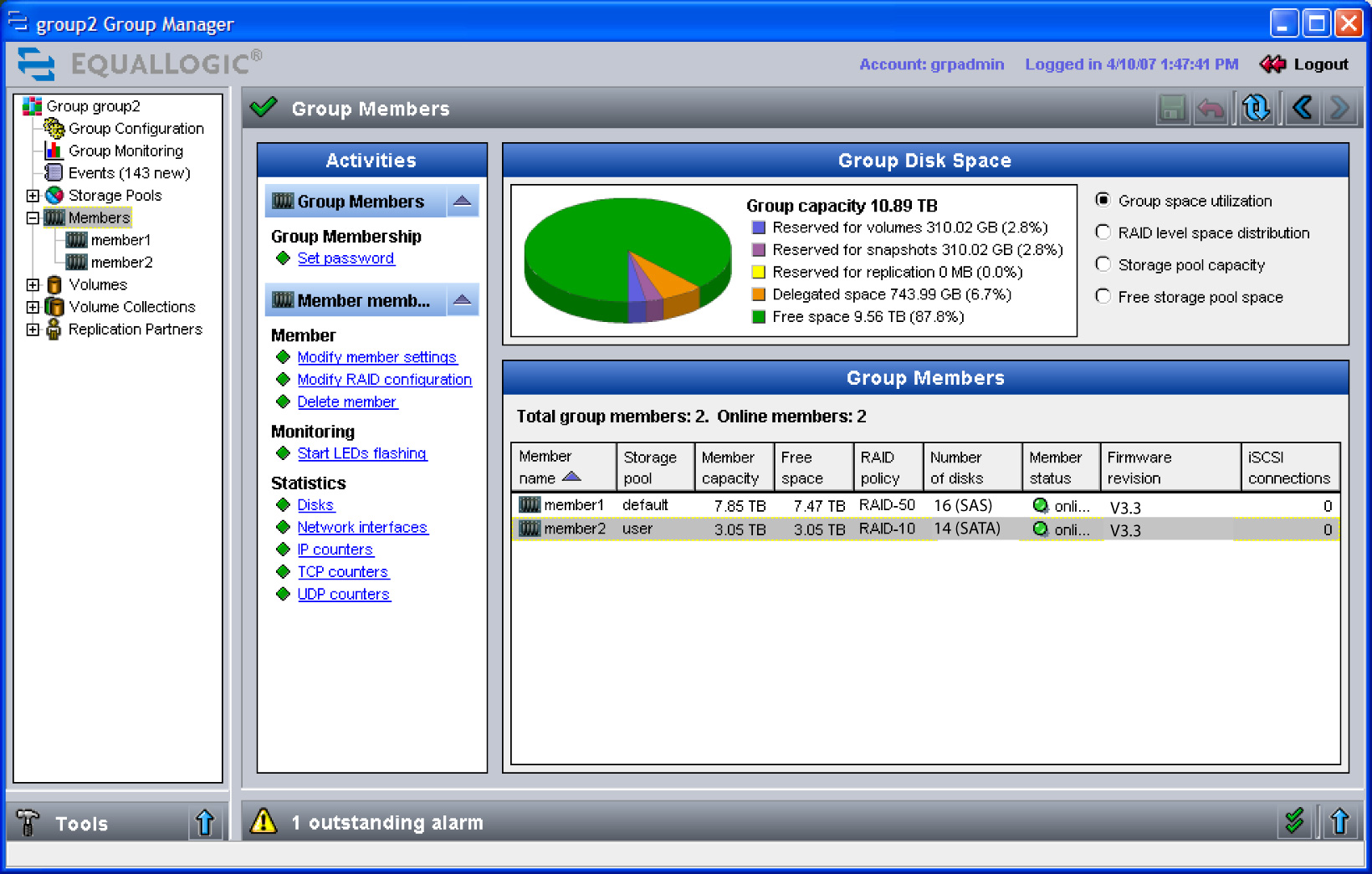
To display the overall status of the group members, click Members in the far left panel. The Member Summary window appears (Figure 6: Member Summary ).
In the Group Disk Space panel, select the type of information you want to display:
Note: The group free space shown in the GUI may not reflect the actual free space because the GUI uses a rounding algorithm to calculate free space. To display the actual free space in megabytes, use the Group Manager CLI command cli-settings displayinMB. Then, use the show command to display the free group space.
If free group space is low, you can add disks to members, as described in Installing and Removing Disks, or add members to the group, as described in Adding Members to an Existing Group.
Note that if a pool’s free space is low, you can increase free space by moving volumes from the low-space pool to a different pool, as described in Moving a Volume Across Pools. You can expand pool capacity by moving an existing member to the low-space pool, as described in Moving a Member Across Pools.
For each member, the Group Members panel shows the storage pool, capacity, free space, RAID policy, disk type, status, firmware version, and iSCSI connections. Select a member to display related tasks in the Activities panel.
The member status is shown in Table 1: Member Status.
|
Status |
Description |
|---|---|
|
unconfigured |
Member was added to the group but has no RAID policy configured yet. |
|
initializing |
Member is initializing its storage according to the selected RAID policy. This status remains in effect until initialization is complete if you selected the option to wait before displaying the available storage on the member. See Setting the RAID Policy and Pool for a New Member. |
|
online |
Member is a functioning member of the group. However, a member may experience a failure but still function in the group. Check the member health status for more information. |
|
online, moving |
Member is moving to a different pool. The time to move a member depends on the amount of data that must be moved from the member to the remaining pool members. |
|
offline |
Member is unavailable, was shut down, or experienced a failure. Note: If a member fails, you must quickly identify and correct the problem. |
|
vacating |
Member is in the process of moving data to the remaining group members prior to being removed from the group. The time to remove a member depends on the amount of data that must be moved from the member to the remaining pool members. |
|
vacated |
Member has successfully moved its data to the remaining pool members prior to being removed from the group. |
To display detailed information about a specific member, double-click a member in the Group Members panel or click:
Members > member_name > Status tab
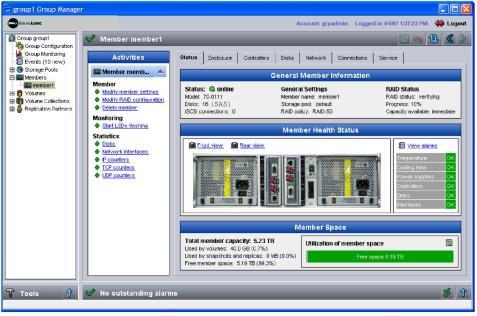
The Member Status window appears. In the Member Status panel, click Front view to display the front panel of the array model. Click Rear view to display the back panel of the array model, including the control modules and the power supply and cooling modules.
An uninstalled or unconfigured hardware component is indicated by a red X in the array graphic. A failed or failing component will appear in the array graphic with a warning or error status symbol. Place the mouse over a component to show status details.
Figure 7: Member Status - PS5000 Array Front Panel shows the front panel and Figure 8: Member Status - PS5000 Array Back Panel shows the rear panel of a PS5000 array.
Figure 7: Member Status - PS5000 Array Front Panel
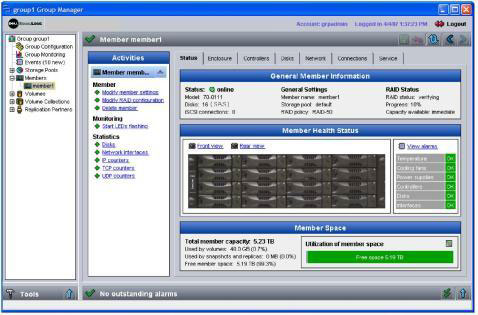
Figure 8: Member Status - PS5000 Array Back Panel
The General Member Information panel displays the following:
The RAID status is shown in Table 2: RAID Status.
|
Status |
Description |
|---|---|
|
OK |
Disk array has successfully initialized and performance is normal. |
|
expanding |
Disk array is expanding (for example, because additional disks have been installed or the RAID policy is changing from RAID-10 to RAID-50). |
|
verifying |
Disk array is initializing (for example, when the member’s RAID policy is set). |
|
degraded |
A RAID 1 set or a RAID 5 set is degraded (for example, because a disk has failed and there is no spare to replace it). If the RAID policy is RAID-5 or RAID-50, performance may be impaired. Note: If the RAID status is degraded, immediately identify and replace any failed disks. It is recommended that spare disks be installed and functioning in an array. |
|
reconstructing |
Disk array is reconstructing data on a disk (for example, because a disk has failed and a spare is being used to replace it). During reconstruction, performance may decline. After reconstruction, performance returns to normal, unless a RAID set is degraded. Note: If the RAID status is reconstructing, immediately identify and replace any failed disks. It is recommended that spare disks be installed and functioning in an array. |
|
failed |
Multiple disk failures in a RAID 1 set or a RAID 5 set have caused the disk array to fail. The member will be set offline. Note: If the RAID status is failed, you may need to recover data from a backup or replica. |
|
catastrophic loss |
Disk array has lost group metadata or user data. The array will not initialize and an error message will appear on the console at regular intervals. Note: See the clearlostdata command in the CLI Reference manual for information about catastrophic data loss. You may need to recover data from a backup or replica. |
The Member Health Status panel displays the following:
If the status is warning or critical, an alarm will occur in the Outstanding Alarms panel. See Monitoring Alarms and Action Items for information about the health conditions that result in alarms. Be sure to investigate any alarms.
If failed disks exist, click the Disks tab to display the disk configuration. You must replace any failed disks as soon as possible. See Handling Failed Disks for more information.
The Member Space panel displays the following:
If free member space is low, you can increase the member capacity by adding disks (up to the maximum allowed number). See Installing and Removing Disks for more information.
To display detailed information about the member, click the other tabs: